⚙️ Update Profile
This guide walks you through the complete flow of editing a profile in Argus, from accessing the edit options to making changes to filters, alerts, and profile settings.
How to Edit a Profile
1: Access Profile Options
- On the Profiles page, locate the profile you want to edit
- Click the three vertical dots (⋮) in the top-right corner of the profile card
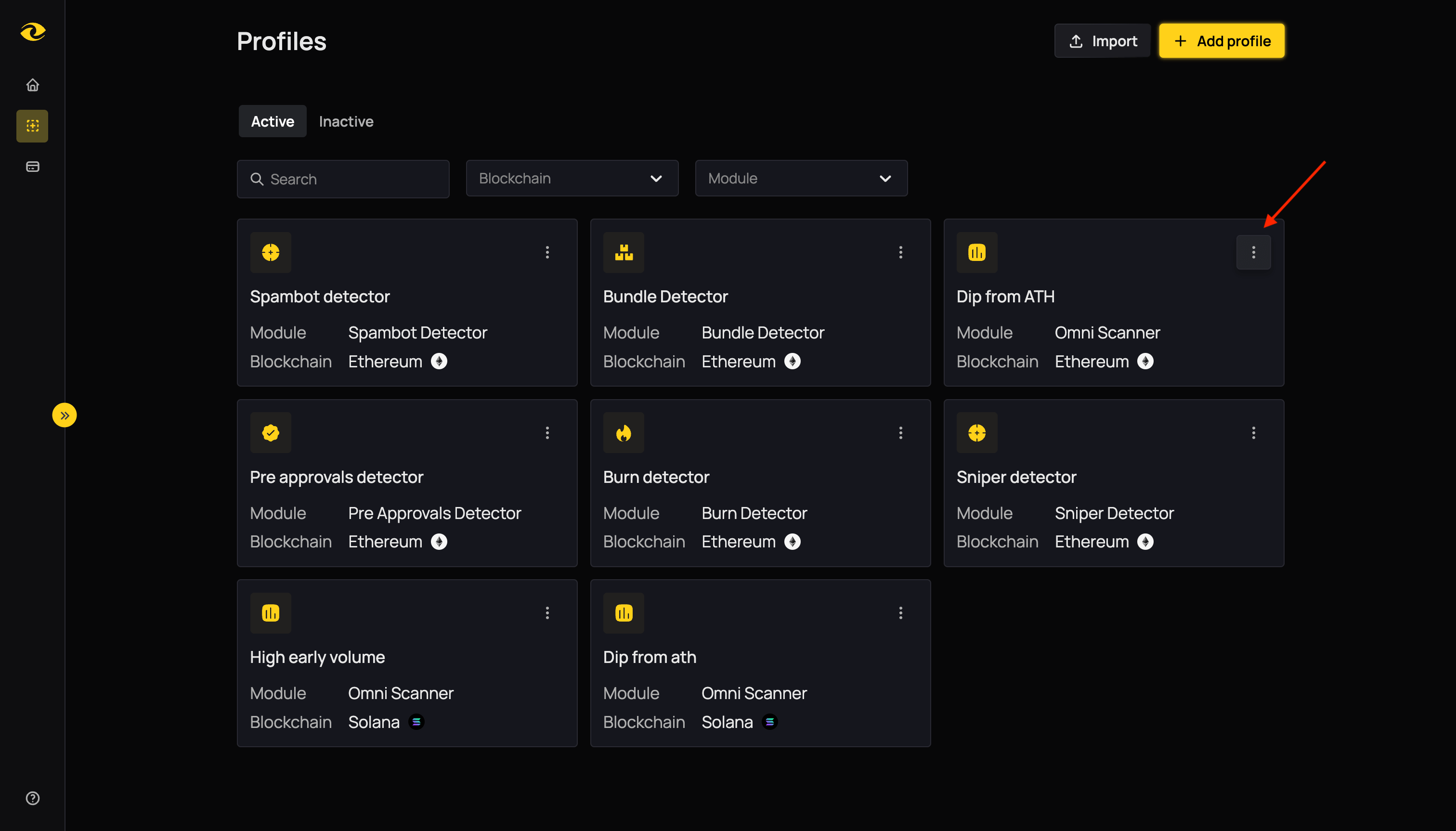
Click the three dots menu on your profile card
2: Select Edit Option
- From the popover menu that appears, click the "Edit" option (with the pencil icon)
- You'll be redirected to the profile builder page
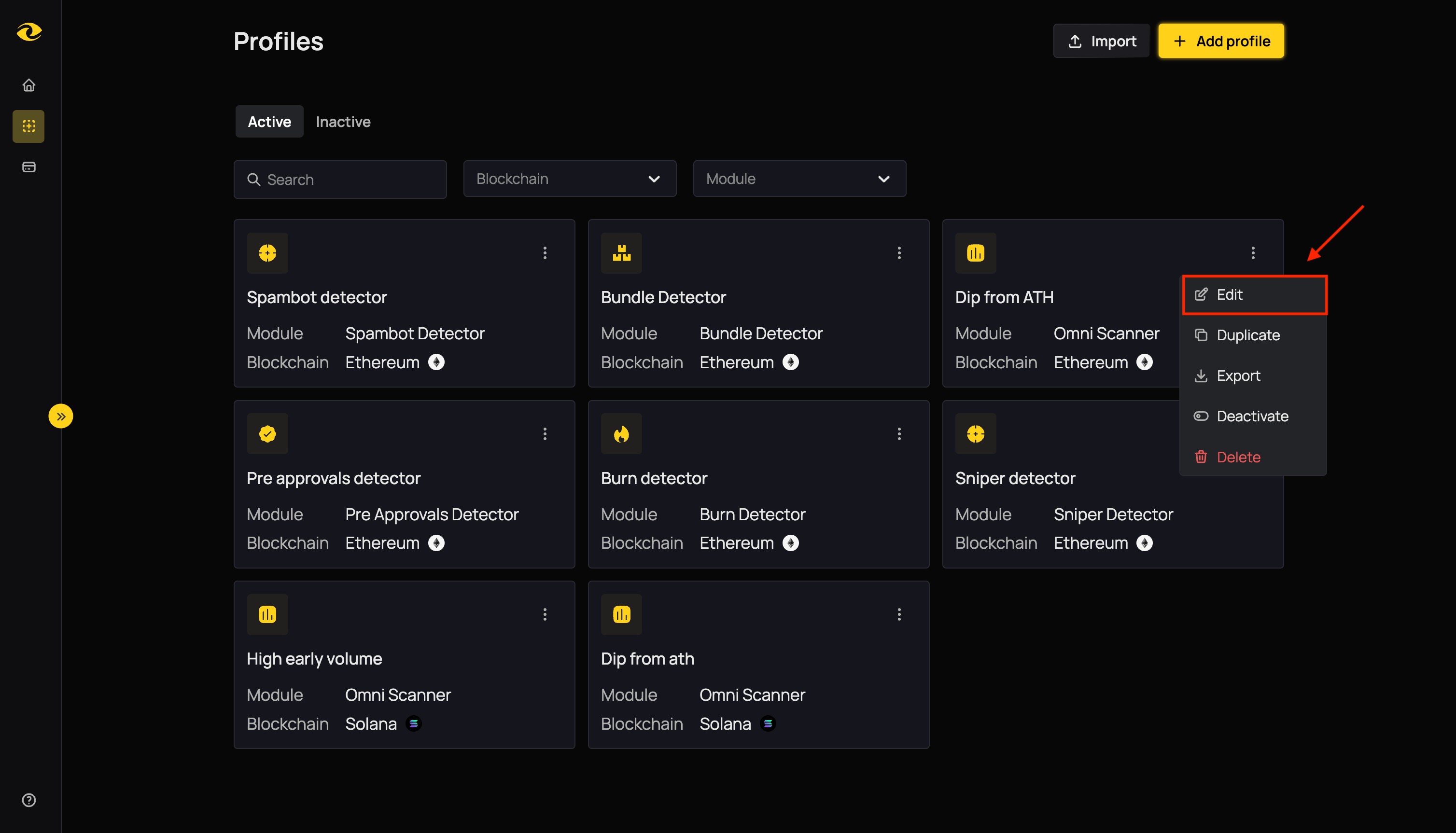
Select "Edit" from the popover menu
3: Modify Profile
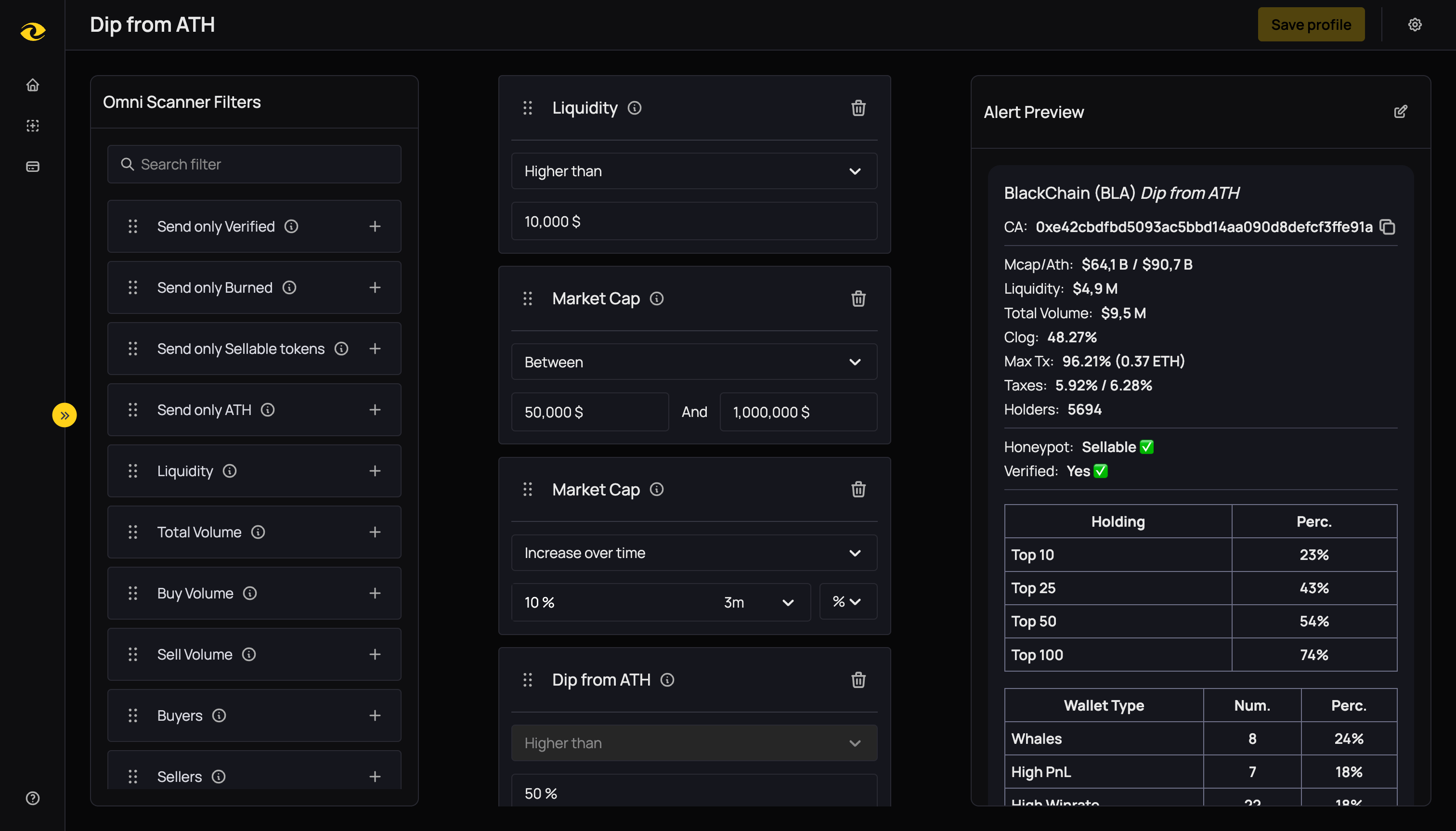
The Profile Builder Page where you can modify filters, alerts, and settings
Once on the profile builder page, you have three main areas you can modify:
A. Update Filters
- Modify the detection criteria for your profile
- Add, remove, or adjust filters based on your module
- For detailed filter information, see the specific module's documentation:
BSC:
Ethereum:
Solana:
B. Customize Alert Message
- Change the alert message you'll receive in your Telegram Bot
- Add or remove fields to control what information appears in notifications
- For detailed instructions, see the Alert Customization Guide
C. Change Profile Settings
- Click the settings cog (⚙️) in the top right corner of the profile builder page
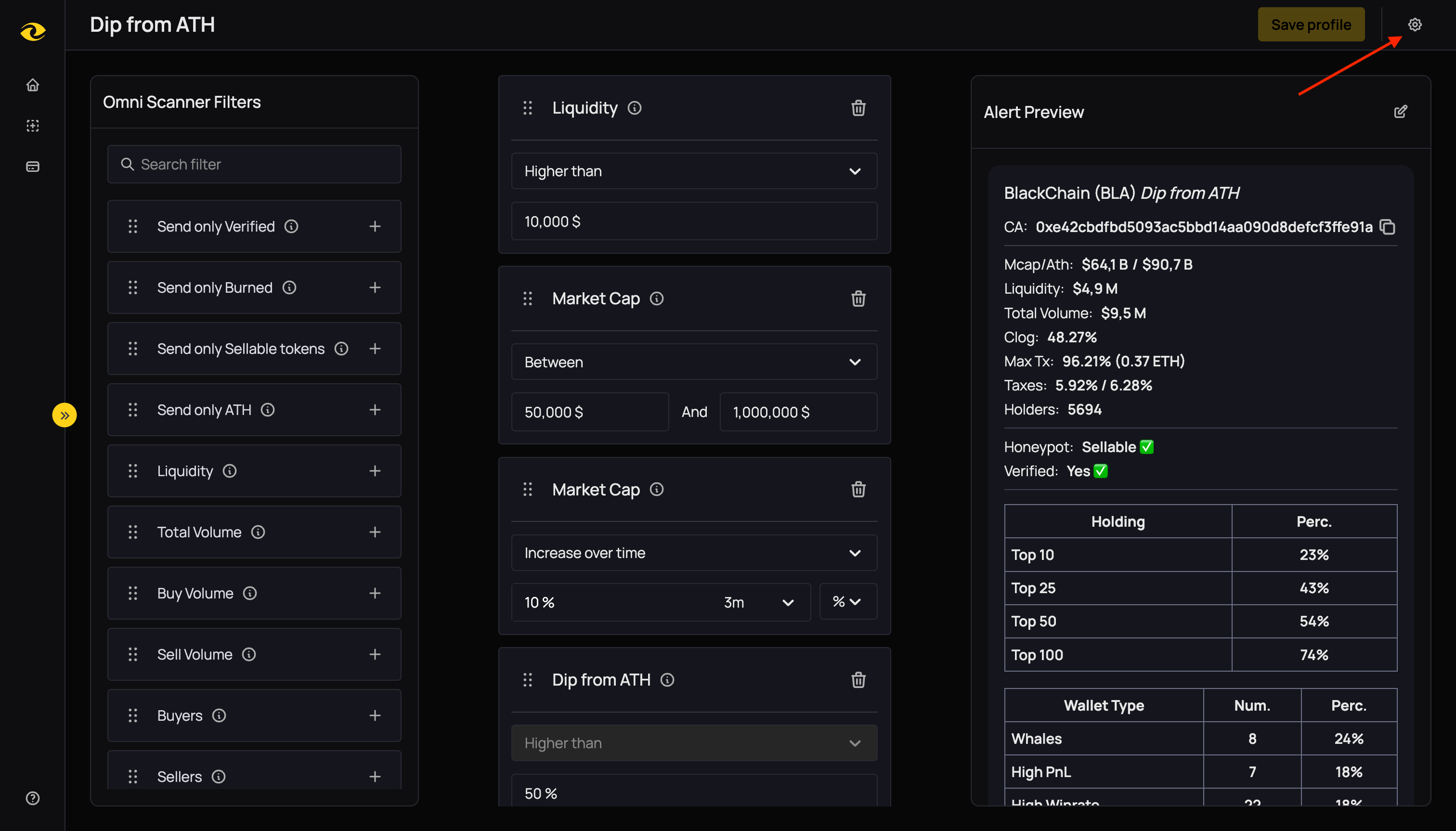
Click the settings cog in the top right corner
- This opens the Profile Settings panel where you can configure various aspects of your profile
Profile Settings Options
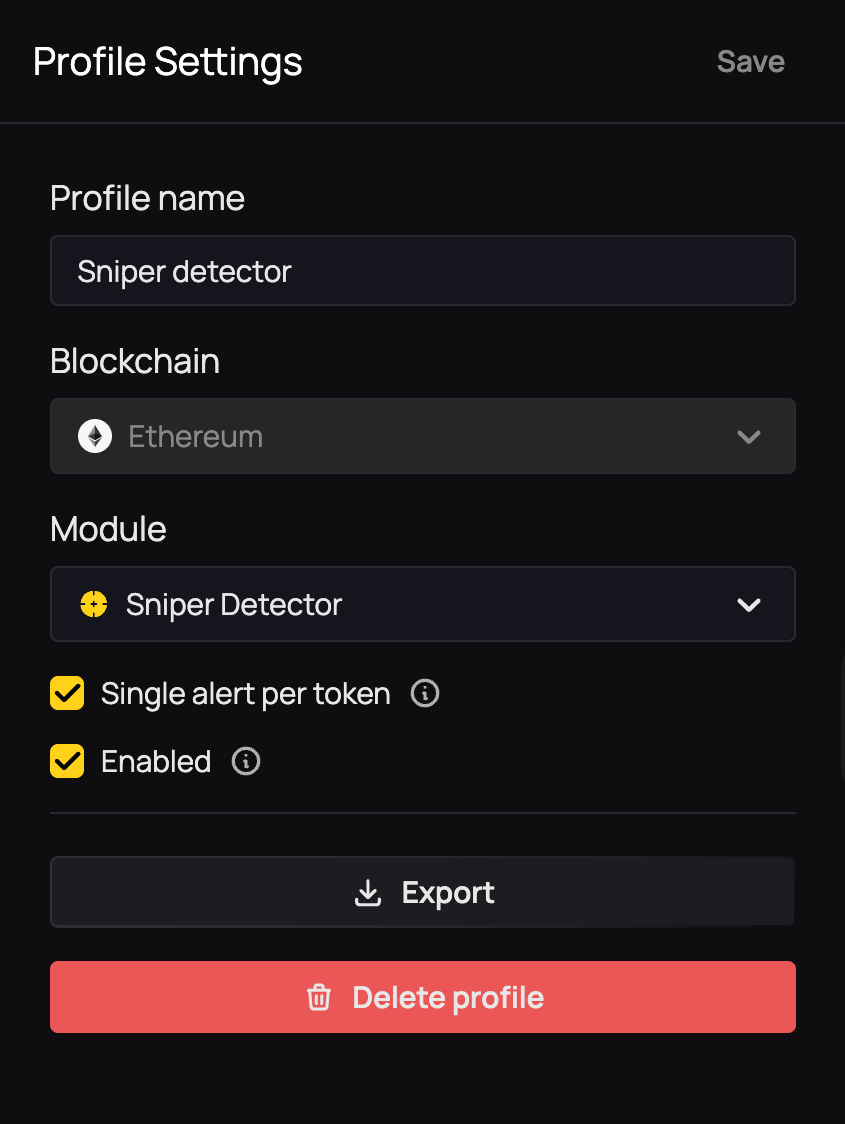
The Profile Settings interface
Here's a breakdown of what each setting option does:
| Setting | Description |
|---|---|
| Profile name | Change the current name of your profile. |
| Blockchain | The blockchain on which the profile was set. This is read-only information and cannot be changed after profile creation. |
| Module | Change the module being used for your profile.
⚠️ Warning: Changing the module will reset all your filters and alert customization. It's recommended to create a new profile instead of changing the module. |
| Single alert per token | If checked, you'll only receive one alert per token matched. Uncheck to allow multiple alerts if the same token triggers repeatedly.
Note: Spambot detector is an exception - it sends an alert each time a token is spammed, so you may receive multiple alerts for the same token even when this option is checked. |
| Enabled | Toggles whether this profile is actively scanning. Turn it off if you want to keep the profile but pause alerts temporarily. |
| Save | Click to confirm your changes. |
| Export | Opens a modal with a code that can be shared between people to import a profile. |
| Delete profile | Completely removes this profile from your dashboard. Be cautious—this action cannot be undone. |
Complete Edit Flow Summary
- Profiles Page → Click three dots (⋮) on profile card
- Popover Menu → Select "Edit" option
- Profile Builder Page → Choose what to modify:
- Filters: Update detection criteria
- Alert Customization: Modify Telegram notification content
- Profile Settings: Click settings cog (⚙️) to access configuration options
- Make Changes → Update your desired settings
- Save Profile → Click "Save profile" button to confirm changes